WHMCS does not ship a dark mode for its client area or order forms. I found no setting for one in the documentation and no prefers-color-scheme rule in the Twenty-One or Nexus stylesheets. The safe way to add a WHMCS dark mode is a child theme with dark CSS and a small toggle script. A ready-made dark theme fits when you want a full redesign anyway.
A WHMCS dark mode is a second color scheme for the client area and cart: light text on dark surfaces, picked by the visitor or by their operating system setting. It is not the same as a dark theme, which is dark all the time. A good dark mode leaves the light version exactly as it was.
I have built 200+ custom WHMCS modules. Folder layout and theme.yaml are in my WHMCS theme structure guide, so I skip them here. WHMCS facts come from the official docs, read on 26 October 2026. The code follows WHMCS's GitHub theme files (release v9.0.7) and is a starting point, not a theme tested on a live install.
Does WHMCS have a dark mode out of the box?
No, not for the client area. The developer documentation names Twenty-One as the default theme, and the WHMCS 9.0 release notes add the Nexus cart with no dark mode. The stylesheets in the WHMCS GitHub repositories (Twenty-One and Nexus v9.0.7, Standard Cart v9.0.9) contain no prefers-color-scheme rule.
| Design | How its colors are set | Dark mode work |
|---|---|---|
| Twenty-One (default theme) | Bootstrap 4.5.3 rules with fixed colors: a #f1f1f1 page, white cards and fields, #336699 links. | Override each colored selector. |
| Nexus (theme) | The Nexus Cart page lists CSS variables such as --bg, --text and --border for the whole template. Its Bootstrap base still fixes some colors. | Remap the variables, then override the leftovers. |
| Nexus Cart (order form) | Layout cannot be modified. Colors follow the Nexus variables. | Covered by the Nexus remap. |
| Standard Cart (order form) | Its own stylesheet. Most rules start with #order-standard_cart. | Overrides need that ID too. |
On WHMCS Cloud, the docs point to the Theme Editor addon: custom.css, header.tpl, footer.tpl, homepage.tpl and a color palette, with no dark mode setting documented.
Should you build a child theme or buy a ready-made dark theme?
Build a child theme when you want your current design with a dark option. Buy a ready-made theme when you want a new design anyway and dark mode is one item on the list.
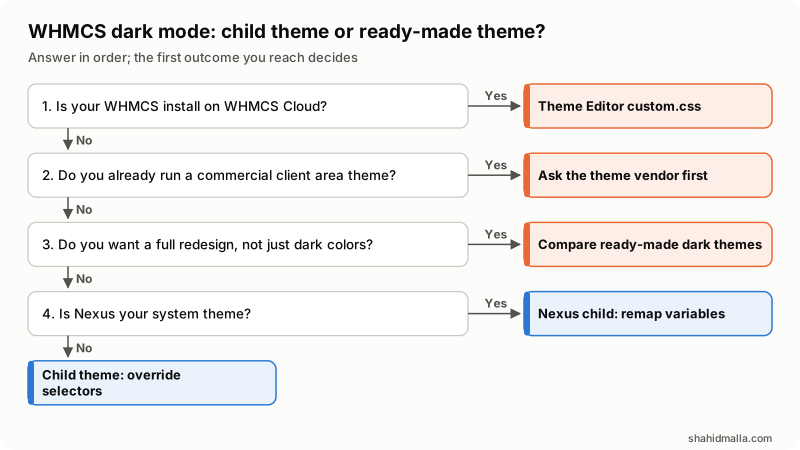
- Is the install on WHMCS Cloud? Yes: put the dark CSS in custom.css through the Theme Editor.
- Do you already run a commercial client area theme? Yes: ask its vendor first, because your overrides would sit on top of their files.
- Do you want a full redesign, not just dark colors? Yes: compare ready-made themes that offer dark mode.
- Is Nexus your system theme? Yes: a Nexus child theme that remaps its CSS variables. No: a Twenty-One child theme that overrides selectors.
How do you set up a WHMCS child theme for dark mode?
Follow the documented child theme steps. A child holds only what you change and keeps receiving updates to every parent file you did not copy.
templates/
  mytheme/
    theme.yaml          name, and parent: twenty-one or nexus
    css/custom.css      parent's custom.css, then your dark rules
    js/theme-toggle.js  picks and saves the mode
    includes/head.tpl   parent's file plus one script tag
The documentation says custom.css loads automatically in every shipped theme and overrides the parent's styling. One detail it skips: in the v9.0.7 files, Twenty-One's custom.css sets html { font-size: 14px; } and the Nexus Cart color variables, and Nexus defines all its color variables in custom.css, not theme.css. Both head.tpl files link one custom.css, so if your child's file replaces the parent's, those lines go. Start the child's custom.css as a copy of the parent's.
The toggle is the one reason to copy a template. Copy includes/head.tpl from the parent unchanged and add this line at the end:
<script src="{$WEB_ROOT}/templates/mytheme/js/theme-toggle.js"></script>The docs allow hard-coded asset paths in most child themes. Preview with ?systpl=mytheme, then select the theme in System Theme on the General tab at Configuration > System Settings > General Settings. To copy no template at all, my WHMCS hooks guide shows the head output hook route.
How do CSS variables and prefers-color-scheme fit together?
Keep every dark color in a custom property and switch the scheme on one attribute. MDN says CSS custom properties let you define a value once and reference it elsewhere with var(). The prefers-color-scheme media feature detects whether the visitor asked for a light or dark theme, and MDN lists it as available across browsers since January 2020.
A toggle cannot overrule a media query, so the script reads the system setting and writes data-theme on the html element, and the CSS needs one set of dark rules. color-scheme, MDN says, also darkens the canvas, scrollbars and default form controls.
/* mytheme/css/custom.css, below the copied parent rules */
:root[data-theme="dark"] {
  color-scheme: dark;
  --dm-page: #121417;
  --dm-surface: #1c1f24;
  --dm-text: #e6e6e6;
  --dm-muted: #a9aeb5;
  --dm-border: #6b7380;
  --dm-link: #8ab4f8;
}
/* Twenty-One fixes these colors, so each needs a rule. */
[data-theme="dark"] .primary-bg-color {
  background-color: var(--dm-page);
  color: var(--dm-text);
}
[data-theme="dark"] header.header,
[data-theme="dark"] .master-breadcrumb,
[data-theme="dark"] .card,
[data-theme="dark"] .list-group-item,
[data-theme="dark"] .dropdown-menu,
[data-theme="dark"] .modal-content {
  background-color: var(--dm-surface);
  color: var(--dm-text);
  border-color: var(--dm-border);
}
[data-theme="dark"] .form-control {
  background-color: var(--dm-page);
  color: var(--dm-text);
  border-color: var(--dm-border);
}
[data-theme="dark"] .table,
[data-theme="dark"] .dropdown-item,
[data-theme="dark"] .list-group-item-action {
  color: var(--dm-text);
}
/* Bootstrap utilities use !important, so these must too. */
[data-theme="dark"] .bg-white,
[data-theme="dark"] .bg-light {
  background-color: var(--dm-surface) !important;
}
[data-theme="dark"] .text-muted {
  color: var(--dm-muted) !important;
}
/* :where() adds no specificity, so buttons keep their colors. */
:where([data-theme="dark"]) a,
:where([data-theme="dark"]) a:hover {
  color: var(--dm-link);
}
/* These Standard Cart rules start with an ID, so yours must too. */
[data-theme="dark"] #order-standard_cart .products .product,
[data-theme="dark"] #order-standard_cart .view-cart-items .item {
  background-color: var(--dm-surface);
  color: var(--dm-text);
}
Twenty-One puts the primary-bg-color class on the body, hence the page rule. Menus, alerts, badges and hover states need more rules; I find them by clicking through every page in dark mode.
Nexus is less work, because its components read the variables. Remap them under the same selector:
/* mynexus/css/custom.css, below the copied Nexus :root block */
:root[data-theme="dark"] {
  color-scheme: dark;
  --bg: var(--neutral-800);
  --bg-muted: var(--neutral-800);
  --bg-lifted: var(--neutral-900);
  --bg-accented: var(--neutral-700);
  --bg-inverted: var(--neutral-950);
  --text: var(--neutral-100);
  --text-muted: var(--neutral-400);
  --text-lifted: var(--neutral-300);
  --text-accented: var(--neutral-200);
  --border-muted: var(--neutral-700);
  --border: var(--neutral-500);
  --border-lifted: var(--neutral-400);
}
Two catches. Nexus paints its footer and .btn-primary with --bg-inverted, so primary buttons go near-black on a near-black page; give them a brand color. And its Bootstrap base still paints cards, fields and modals white, so reuse the component rules above with the Nexus variables.
How do you add a dark mode toggle that remembers the choice?
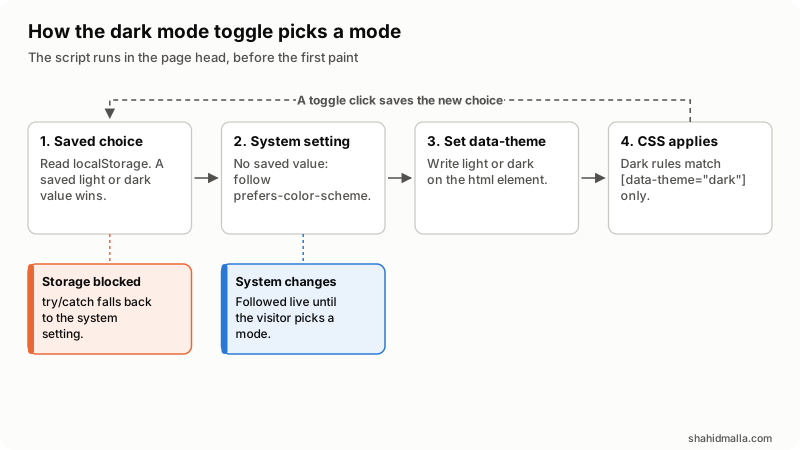
Save the choice in localStorage and apply it before the page paints. MDN's localStorage page says the data persists across browser sessions, except in private browsing, where it is cleared when the last private tab closes. Access can also throw a SecurityError when the visitor blocks sites from saving data, so every storage call below sits in try/catch.
// mytheme/js/theme-toggle.js
(function () {
  var KEY = 'whmcs-theme';
  var root = document.documentElement;
  var media = window.matchMedia('(prefers-color-scheme: dark)');
  var button = null;

  function saved() {
    try {
      var value = localStorage.getItem(KEY);
      return value === 'light' || value === 'dark' ? value : null;
    } catch (e) {
      return null; // storage blocked: follow the system setting
    }
  }

  function apply(mode) {
    root.setAttribute('data-theme', mode);
    if (button) button.setAttribute('aria-pressed', String(mode === 'dark'));
  }

  // Runs in the head, before the first paint.
  apply(saved() || (media.matches ? 'dark' : 'light'));

  // Follow system changes until the visitor picks a mode.
  media.addEventListener('change', function (event) {
    if (!saved()) apply(event.matches ? 'dark' : 'light');
  });

  document.addEventListener('DOMContentLoaded', function () {
    button = document.createElement('button');
    button.type = 'button';
    button.className = 'theme-toggle';
    button.textContent = 'Dark mode';
    button.addEventListener('click', function () {
      var next = root.getAttribute('data-theme') === 'dark' ? 'light' : 'dark';
      try { localStorage.setItem(KEY, next); } catch (e) {}
      apply(next);
    });
    document.body.appendChild(button);
    apply(root.getAttribute('data-theme'));
  });
})();
In order: a saved choice wins. With nothing saved, the script follows prefers-color-scheme, including later changes. It writes the mode to data-theme, and the CSS matches that attribute. A click flips and saves the mode, and aria-pressed lets screen readers announce a toggle. Give .theme-toggle a fixed position in custom.css. I pin it bottom left, because many chat widgets sit bottom right (see my WHMCS live chat guide).
What contrast does a WHMCS dark mode need?
The same ratios as the light version. WCAG 2.2 success criterion 1.4.3, Contrast (Minimum), asks for at least 4.5:1 for text and 3:1 for large text, meaning at least 18 point, or 14 point bold. Non-text Contrast, 1.4.11, asks for 3:1 for the visual information that identifies interface components and their states, including field boundaries and focus indicators. Both are Level AA.
My example palette, by the WCAG contrast formula:
| Pair | Ratio | Minimum |
|---|---|---|
| Text #e6e6e6 on surface #1c1f24 | 13.24:1 | 4.5:1 |
| Muted text #a9aeb5 on surface | 7.40:1 | 4.5:1 |
| Link #8ab4f8 on surface | 7.84:1 | 4.5:1 |
| Field border #6b7380 on surface | 3.45:1 | 3:1 |
| Field border #6b7380 on field #121417 | 3.86:1 | 3:1 |
| Twenty-One's link #336699 on surface | 2.76:1 | 4.5:1 (fails) |
That last row is why the example changes the link color. Check brand colors too.
What should you test before turning dark mode on?
Every page a client can reach, in both modes, on staging. Trouble usually hides here:
| Area | Why it needs a check |
|---|---|
| Standard Cart steps | The order form docs say common.tpl brings CSS specific to the order pages. Product boxes and cart items stay white until ID-prefixed overrides exist. |
| Nexus Cart screens | Colors follow the variables. Walk through domain search, results and the cart. |
| On-screen invoice | viewinvoice.tpl is its own template. Clients print it, so decide whether it goes dark. |
| PDF invoices and quotes | The PDF docs say WHMCS builds them with TCPDF. Client area CSS never reaches them. |
| Client emails | Email styling lives in the Mail tab of General Settings, with light default CSS. |
| Module pages | Addon and provisioning modules can carry their own markup and colors. |
| Logo and hover states | A dark logo disappears on a dark header. Bootstrap hover backgrounds turn light again unless overridden. |
Before launch:
- Preview with
?systpl=on staging, logged in and out. - Check every page, module page and one test order in both modes.
- Test the toggle in a private window and with site data blocked.
- Measure text, links, field borders and focus rings.
- List copied files to compare after each update.
Will a WHMCS dark mode survive updates?
Yes, if it lives in a child theme. The CSS Styling page says custom.css is not affected by future updates, and the child theme page says a child receives updates to every file it does not override.
- Copied files freeze. Here that is head.tpl and the copied custom.css rules. Compare both with the parent's after each update.
- The shipped Nexus file. The Nexus Cart page says to edit templates/nexus/css/custom.css. That file ships with Nexus, so I keep changes in a child.
- Nexus Cart under a child. The release notes enable the Nexus Cart with Nexus as the system theme. I found nothing on a child of Nexus, so test that on staging.
My WHMCS upgrade guide covers the update itself.
When is a ready-made dark theme the better choice?
When you want a new look as well as dark mode, or nobody will maintain the CSS. The WHMCS Marketplace Templates & Themes category showed 138 apps and integrations on 26 October 2026. Its first page mixes client area and admin themes, email templates and website templates bundled with a client area theme. A few call themselves dark themes; others offer several color schemes. I have not tested or ranked any.
"Dark theme" can mean always dark, which is not a mode your clients control. Ask the vendor whether it switches and follows the system setting, whether it covers your cart and invoice page, which WHMCS version it supports today, and whether you can add CSS without editing its files.
I founded WHMCSPilot. Its home page today lists WHMCS modules and no dark theme, so I have no theme of my own to point you to. My WHMCS services page lists the work I take on.
What else do people ask about WHMCS dark mode?
Can you make the WHMCS admin area dark?
This guide covers the client area, which customers see. The Marketplace Templates & Themes category also lists admin themes; confirm dark mode on each product's own page.
How do you stop the white flash when a dark page loads?
Set the mode before the browser draws anything. Load the script in the head without defer or async, and do not wait for DOMContentLoaded to apply it. Only the button needs the body.
Does a dark mode have to meet WCAG contrast rules?
Yes. WCAG measures contrast against the background the text is rendered on in normal use, and its exceptions cover large text, inactive or decorative text and logos, not color schemes. Dark body text below 4.5:1 fails 1.4.3 for every visitor who picks it.
Can WHMCS emails and PDF invoices be dark too?
Not through the client area theme. Emails use their own header, footer and CSS in the Mail tab, and PDFs come from TCPDF templates. I leave both light, because PDFs get printed and emails are read in mail apps I do not control.
If you want this built on your install, with every cart step, module page and contrast pair checked on staging, that is WHMCS theme customization work: a free scoping call of about 30 minutes, then a written quote within one business day.
Last reviewed 26 October 2026. Disclosure: I sell WHMCS development, including theme work, so I am not neutral. I am CTO at ElySpace, a freelance developer for Marmaids LLC, and founder of WHMCSPilot and MagizAI. I am not affiliated with WHMCS or any Marketplace theme vendor. WHMCS facts come from docs.whmcs.com, developers.whmcs.com and WHMCS's GitHub repositories as I read them on that date. The code has not been tested on a live install.