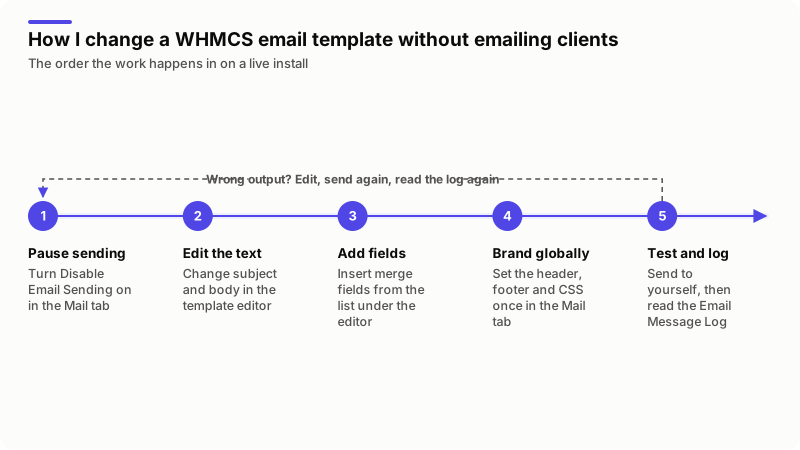
WHMCS email templates live at Configuration > System Settings > Email Templates, and they decide what every automated message says. Edit the subject and body there, brand all of them at once from the Mail tab of General Settings, and work with Disable Email Sending turned on so nothing half-finished reaches a client. Test by sending to yourself, then read the Email Message Log.
A WHMCS email template is a stored subject line and message body, written in Smarty, that WHMCS fills with a client's own data and sends when an event happens: an order, an invoice, a suspension, a ticket reply. Each one is a row in the tblemailtemplates database table, not a file in your theme, so you edit it in the Admin Area and not over FTP. A global header, footer and stylesheet wrap around whichever template fires.
Everything below is checked against the WHMCS 9.1 documentation, read on 13 November 2026. The WHMCS documentation home page listed 9.1 as the General Availability release that day. On an older version, read the linked pages under your own version number.
Where do WHMCS email templates live?
At Configuration > System Settings > Email Templates, with the branding that wraps around them set elsewhere. That split is what people get wrong: the words are in the template, the logo and colors are not. The Email Templates page documents the editor itself, and the Mail tab page the global settings below.
| What you want to change | Where it is set |
|---|---|
| Subject and body of one message | Configuration > System Settings > Email Templates |
| Sender, CC and BCC on one client email | The header section of that template's editor |
| Sender on admin notifications | System Emails From Name and From Email, Mail tab |
| Logo, wrapper and colors on every client email | Global Email Header Content, Footer Content and CSS Styling, Mail tab |
The sign-off that {$signature} prints | Global Email Signature, Mail tab |
| Whether WHMCS sends any mail at all | Disable Email Sending, Mail tab |
| An address copied on every client email | BCC Messages, Mail tab |
| Which welcome email a product sends | Details tab of the product, under Products/Services |
| A record of what was actually sent | Email Message Log, Configuration > System Logs |
One restriction matters before you start: you cannot change the sender or subject on support ticket templates. They keep a fixed format so email piping can match replies back to the right ticket.
How do you stop a test email reaching real clients?
Set Disable Email Sending to ON in the Mail tab before you touch anything. WHMCS then sends no outgoing mail at all, which is what you want while a half-edited template could still fire from a cron run or a client action. The Disable Outgoing Mail page names testing customizations as the intended use, and says to turn it off again as soon as you are done, because payment reminders and purchase confirmations stop with everything else.
WHMCS logs an entry at Configuration > System Logs whenever that setting changes, so you can see when it went on. SparkPost users also have Use Sink Testing, which checks sending without delivering. Better still, work on a staging copy, as in my WHMCS invoice template guide.
How do you edit a WHMCS email template?
Click the template name or its edit icon, change what you need, save. The Customize Email Templates page walks the editor section by section:
- Header information. Sender name and address, CC and BCC as a comma-separated list, and a toggle to send as plain text.
- Attachments. Choose Files, then Add More for a second file. WHMCS uploads them to your downloads directory, so a large PDF on a busy template costs disk; the documentation suggests an Amazon S3 bucket when that space runs short.
- Subject. Free text, except on support ticket templates.
- Body. Enable/Disable Rich Text Editor switches between the visual editor and raw HTML. Do the real work in HTML view: it is easy to lose a Smarty tag in the rich text editor.
You can add your own with Create New Email Template, but only in the four types you can send by hand: General, Product, Domain and Invoice. Use a name no other template has, because only admins see it and you will pick it from a menu later. Never call one Mass Mail Template: WHMCS reserves that name and deletes any template using it after a mass mail runs.
Product messages add a rule. A custom welcome, termination or upgrade email must be created in the Product/Service Messages category or it will not appear in the product's menus. You then assign it per product: Welcome Email on the Details tab, Termination Email on the Pricing tab, Upgrade Email on the Upgrades tab. See Assign Custom Emails to Products.
Which merge fields can you put in the body?
The list under the editor window is the only list that matters, because the fields change with the type of template open: an invoice template offers invoice data, a ticket template offers ticket data. Clicking a field's description inserts it. These are the patterns that list does not make obvious:
| Merge field | What it prints |
|---|---|
{$signature} | The Global Email Signature from the Mail tab |
{$company_name}, {$company_domain}, {$company_logo_url} | Company details; the default global header uses all three |
{$whmcs_url} | Your WHMCS address; the default footer builds its login and submitticket.php links from it |
{$charset} | The character set, used in the default header's meta tag |
{$addon_name} | The name of the addon a client bought, for welcome emails |
{$client_custom_field_vatnumber} | A client custom field by name: lowercase it and strip anything that is not a to z or 0 to 9, so "VAT Number" becomes vatnumber |
{$service_custom_field_fieldnamehere} | A product custom field, named by the same rule |
{$service_custom_fields} | Every custom field on the product, as an array to loop over |
That last one prints custom fields without naming each of them:
{foreach from=$service_custom_fields item=customfield}
{$customfield}
{/foreach}
Smarty conditionals work too, so one template can cover two cases instead of becoming two templates. The documentation's own example adds a line to a ticket confirmation for one department only:
{if $ticket_department eq "Sales"}
The sales department is open 9-5pm Monday-Friday. We thank you for your patience.
{/if}
WHMCS recommends avoiding {php} tags in email templates for security reasons. Where a message genuinely needs logic, the documented route is a hook.
How do you brand every WHMCS email at once?
Edit the three global boxes in the Mail tab rather than every template. Global Email Header Content and Global Email Footer Content hold the HTML that wraps each message; Global Email CSS Styling holds the stylesheet that formats it. Change those once and every client email changes.
The Configure Email Styling page publishes the exact defaults, worth reading before you replace them. The shipped header is an XHTML document with an [EmailCSS] placeholder in its style block, a logo linked to your company domain, and a container table that the stylesheet fixes at 600 pixels wide. The stylesheet carries the usual email client workarounds, including a mobile breakpoint at 640 pixels with a hide-mobile class.
Two limits to plan around. Admin notification emails cannot be styled this way, so order and cron notices stay plain, and a template set to send as plain text carries no HTML for the styling to wrap. Where branding goes further than a logo and colors, that is theme-level work, which I cover on my WHMCS theme customization page.
How do you send one template in several languages?
Activate the locale first, then translate. On the template list, click Manage Languages, pick the locale under Choose language to add and click Activate. Editing a template then shows an extra subject and body editor for that locale below the default one, as Localize Email Templates explains.
What gets sent follows a clear order. Editing without activating anything changes the default version, which goes to your default locale and every locale you have not translated. Where a translation exists for the client's preferred locale, that version goes instead. The language comes from the Summary tab of the client profile; individual users use the language at Clients > Manage Users; admin emails use the system default from the Localization tab, falling back to English if that language is invalid or deleted.
How do you add data that WHMCS does not already hold?
With a hook file in /includes/hooks, not with PHP inside the template. Four hook points in the WHMCS hooks reference cover almost everything people try to do to email.
| Hook point | What it is for |
|---|---|
EmailPreSend | Runs before any templated email. Returned key/value pairs become extra merge fields; abortsend=true stops the message; an attachments array attaches files built at send time. |
EmailTplMergeFields | Runs when an admin edits a template, so your custom fields appear in the list under the editor. |
EmailPreLog | Runs before an email is logged. Overrides what gets written, or returns abortLogging. |
PreEmailSendReduceRecipients | Runs before a client email is sent and removes CC or BCC recipients selectively. |
The first two are usually written together: one supplies the value, the other shows the field name to whoever edits that template next. My WHMCS hooks guide covers how hook files load.
How do you test an email template safely?
Send it to yourself from a test client, then prove it left by reading the log. The mail provider and the template are separate things to check, in that order. For the provider, use Test Configuration in the Mail tab; WHMCS also sends a test when you save a provider and refuses to save unless that test succeeds. SMTP adds a Debugging toggle for connection problems.
For the template, create a client whose email address is yours. On that client's Summary tab, Load Message opens an existing template to send and New Message composes a one-off; invoice emails go out from the invoice at Billing > Invoices. Anything already sent can go again: find it in the client's Email tab or the Email Message Log, click Resend, edit and send. See Emailing Clients.
Run through this before calling a template change finished:
- Every merge field printed a real value, with no blanks and no literal
{$variable}left in the text. - The message reads correctly as HTML, and as plain text if you use that option.
- The Email Message Log shows the send and the Activity Log shows no error at that time.
- The template is not left checked as Disable.
- Disable Email Sending is back to OFF in the Mail tab.
- Any product whose welcome, termination or upgrade email you changed still has the right template selected.
The log has blind spots. The documentation says it holds back messages from templates that carry sensitive data, and names three: Automated Password Reset, Client Email Address Verification and Password Reset Validation. A separate rule stops CC and BCC on Password Reset Validation, Password Reset Confirmation and Automated Password Reset. Testing a password email means watching an inbox, not the log.
One rule from the Unsent General Emails page saves hours. If a message appears in the Email Message Log and no error appears in the Activity Log, it left WHMCS cleanly and the problem is delivery, not your template. That is a mail server and DNS question: my DMARC setup guide and my notes on cPanel email going to spam start there.
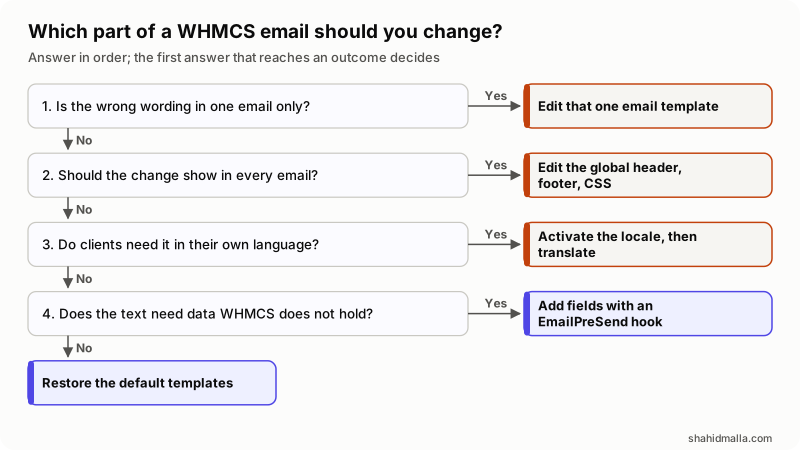
In words: wrong wording in one message means edit that template. A change that belongs on every message means the global header, footer or CSS. Another language means activating the locale and translating there. Text needing data WHMCS does not hold means an EmailPreSend hook. If none fit and the template is broken, restore the defaults.
What goes wrong, and how do you restore the defaults?
The common failures are a Smarty syntax error, a template someone disabled and forgot, and a deleted template that leaves an Email Template Not Found error. The first two are silent: clients simply stop getting the message. So the first check on any unsent email is whether the template is marked Disable, and the second is whether a hook is aborting the send.
Restoring is not a one-click job. On WHMCS Cloud there is no filesystem access, so it is a support ticket. On a self-hosted install, the Restore Default Email Templates page gives this sequence, and the database backup at the start is not optional:
- Back up the database, then rename
tblemailtemplatestotblemailtemplates_backup. - Download and extract the full release files for your WHMCS version.
- Import
/whmcs/resources/sql/install/tblemailtemplates.schema.sqlto recreate the empty table. - Import
tblemailtemplates.data.sqlfrom the same folder to load the defaults. - Re-add custom templates by hand, reading them out of the backup table.
- Check the template list and confirm the missing ones are back.
That last step is why you keep your own copy of every template you write: a restore wipes anything not in the shipped data file. If the problem turns out to be billing logic rather than wording, my WHMCS troubleshooting guide is the better starting point.
What else do people ask about WHMCS email templates?
Where are WHMCS email templates stored?
In the tblemailtemplates table in the WHMCS database, not as files you edit over FTP. The defaults also ship as two SQL files in the release archive, under /whmcs/resources/sql/install/, which is what the restore process imports.
Can I use HTML in WHMCS email templates?
Yes. Enable/Disable Rich Text Editor switches the body between the visual editor and raw HTML, and the Global Email CSS Styling box formats whatever you write. The exception is a template set to send as plain text, which drops the markup.
Why is WHMCS not sending one particular email?
Check in this order: whether that template is marked Disable, whether a custom hook in /includes/hooks or /modules/addons is stopping it, and whether you can send it manually from the client's profile. If all three are clean, read the Email Message Log and the Activity Log.
How do I change the logo in WHMCS emails?
The shipped Global Email Header Content prints your logo through the {$company_logo_url} merge field, wrapped in a link to {$company_domain}. Either point Logo URL, on the General tab of General Settings, at a different image, or edit the header HTML in the Mail tab. Editing individual templates will not do it.
Does WHMCS log every email it sends?
Almost. The documentation says the Email Message Log holds back messages from templates that carry sensitive data, and names Automated Password Reset, Client Email Address Verification and Password Reset Validation. A custom EmailPreLog hook can also suppress what gets logged, so check your hooks before concluding a message was never sent.
If an email template needs logic, a custom merge field or a module hook behind it, I build that as WHMCS development work, with a free scoping call of about 30 minutes and a written quote within one business day.
Last reviewed 13 November 2026. Disclosure: I am a freelance WHMCS developer and I sell WHMCS customization and development, so I am not neutral. I am CTO at ElySpace, a freelance developer for Marmaids LLC, and founder of WHMCSPilot and MagizAI. Menu paths, field names, hook names, file paths and the version status come from the WHMCS 9.1 documentation as I read it on that date.