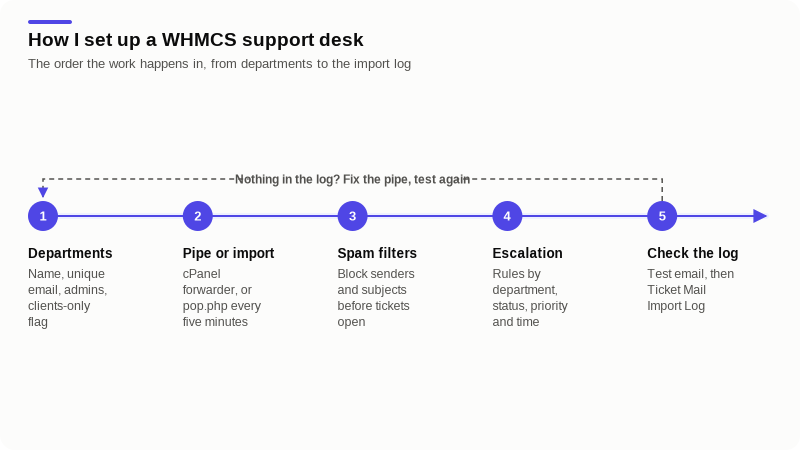
WHMCS support departments are set at Configuration > System Settings > Support Departments. Give each one a unique email address and its own assigned admins, then feed replies in with email piping on cPanel or email importing everywhere else, filter spam before tickets open, and add escalation rules so a ticket that sits too long changes hands by itself.
A WHMCS support department is one queue inside the ticket desk, holding a name, a description, a single email address and the list of admins allowed to read it. Clients choose a department as the first step of opening a ticket, and that choice decides who is notified, whether an autoresponder goes out and which escalation rules apply. Every other part of the support system hangs off that one record.
Everything below is checked against the WHMCS 9.1 documentation, read on 23 November 2026. The WHMCS documentation home page lists 9.1 as the General Availability release, with an anticipated end-of-life date of 30 September 2027. One split matters before you start: email piping is self-hosted only, and WHMCS Cloud uses email importing instead.
How many WHMCS support departments do you need?
Fewer than most hosts create. Every department needs its own mailbox, its own staff and its own escalation rules, so three working queues beat eight empty ones. The Support Departments page names Sales, Support and Billing as the common set, which is a sensible start for a hosting company.
- One unique email address per department. Reusing the same POP3 details across departments may cause duplicate ticket replies.
- Assigned Admin Users is the access control. An admin assigned to no department gets
Access Denied - You are not assigned to any ticket departments. - Deleting a department moves its tickets to the department with the lowest ID, or leaves them with no department at all.
The checkboxes on the department form hold most of the behavior:
| Setting | What it does | Where I use it |
|---|---|---|
| Clients Only | Requires a Client Area login to open a ticket | Support and Billing; Sales stays public |
| Pipe Replies Only | Email may reply but not open a ticket (self-hosted only) | Queues that must start in the Client Area |
| No Autoresponder | Stops the autoresponder on a new ticket | Internal and alert-only queues |
| Feedback Request | Emails the user for feedback | Support; results sit under Reports |
| Prevent Client Closure | Removes the Close button | Billing disputes and abuse queues |
| Hidden | Direct link only | Escalation targets and partner queues |
Prevent Client Closure is not retroactive. Tickets already open when you enable it keep their Close button, and the documentation sends you to Disable Client Ticket Closure for those.
How do you add a support department in WHMCS?
Go to Configuration > System Settings > Support Departments and click Add New Department. The Add a Support Department tutorial gives the order:
- Enter the Department Name and Description. Clients read both while picking a department, so the description should say what belongs in the queue.
- Enter the Email Address. WHMCS uses it as the sender for every notification about that department's tickets, so it has to be deliverable.
- Select the Assigned Admin Users, then set the checkboxes from the table above.
- Fill in Mail Importing Configuration if you are importing rather than piping, and click Add New Department.
Custom fields come after the department exists: edit it, open the Custom Fields tab, and add what the form needs, such as a server hostname or an invoice number.
Should you use email piping or email importing?
Piping if your ticket mail lands on a cPanel and WHM server and comes from one domain. Importing in every other case, including several domains and WHMCS Cloud. That is the recommendation on both the Email Piping and Email Importing pages, and the two are separate configurations, not two settings on one feature.
| Question | Email piping | Email importing |
|---|---|---|
| Where does it work? | Self-hosted WHMCS only | Self-hosted and WHMCS Cloud |
| How does mail arrive? | The mail server pipes it into crons/pipe.php | crons/pop.php collects it from a mailbox |
| Cron job needed? | No | Yes, every five minutes |
| What the department needs | A forwarder on the address | A real mailbox; an alias is not enough |
| Several domains? | Recommended for one | Built for several |
| OAuth2 logins? | No | Google and Microsoft Entra ID |
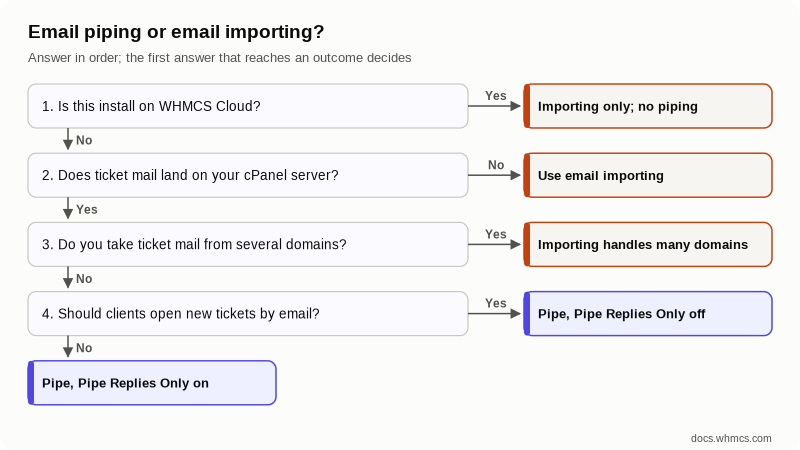
In words: WHMCS Cloud can only import, and so does self-hosted mail that misses your cPanel server or spreads across several domains. What is left is a cPanel server with one mail domain, where piping fits and the only decision left is whether Pipe Replies Only is on.
How do you set up WHMCS email piping on cPanel?
You copy a file path out of WHMCS and paste it into a cPanel forwarder. The Set Up Email Piping - cPanel tutorial has six steps.
- At Configuration > System Settings > Support Departments, find the Ticket Importing using Email Forwarders command. It looks like
| php -q /home/username/public_html/whmcs/crons/pipe.php. - For cPanel, copy only the path to
pipe.php, not the whole command. - In cPanel, open Email > Forwarders and click Add Forwarder.
- For Address to Forward, enter the local part of the department address. For
support@example.com, that issupport. - Pick the domain, click Advanced Options, choose Pipe to a Program and paste the path.
- Click Add Forwarder.
Two details catch people out. If you have customized the location of the crons directory, the forwarder path has to match that location. And your test message must not come from an admin's email address.
Piping pauses during an update: WHMCS returns a temporary failure, your mail server holds the message and delivers it again afterward, so an update window does not lose tickets. My WHMCS cron jobs guide covers the automation side of that window.
How do you set up email importing with POP3, IMAP or OAuth2?
Create one mailbox per department, enter its connection details on the department, and run crons/pop.php every five minutes. The Set Up Email Importing tutorial adds the parts that are easy to miss: the mailbox must be a real mailbox rather than an alias, and IMAP-SSL or POP3-SSL has to be present in the PHP build WHMCS runs on.
On a self-hosted install, take the Ticket Importing using Mail Importing (POP3/IMAP) command from the same screen and schedule it every five minutes; WHMCS Cloud sets that cron up for you. For Google or Microsoft, choose OAuth2 as the authentication type, paste the Client ID and Client Secret from the provider, then click Connect.
Import Limits sit under the mail configuration on each department, count per cron run, are set in MB for attachments, and cannot be disabled:
| Limit | What happens when it is hit |
|---|---|
| Emails Per Import | The rest stay on the server for the next run |
| Total Email Attachments Size Limit | Emails with attachments wait; emails without them keep importing |
| Per-Email Attachment Size Limit | The ticket opens without the attachments, which are listed by file name in the body |
One behavior to plan around: importing deletes the message from the source mailbox once it imports successfully. If you want a copy kept for compliance, keep it elsewhere.
How do you keep junk and loops out of the ticket queue?
With the filters at Configuration > System Settings > Spam Control, which block email before it opens a ticket. The Spam Control page covers blocking addresses, or keywords and phrases in the subject or the body, and notes that matching is not case sensitive. Block Sender inside a ticket does the same in one click.
- A SpamAssassin prefix. If your mail filter tags spam in the subject, add that text as a Spam Control entry with Type set to Subject. That is the documented way to block a domain rather than one address.
- RFC 3834 headers. WHMCS never accepts email carrying the
Auto-Submittedheader through piping or importing, which is what stops two autoresponders talking forever. - Allow Insecure Imports. With this off in the Support tab of General Settings, WHMCS blocks replies from senders who are unregistered, not a CC recipient, or not tied to the ticket's client account. You import those by hand.
Spam Control does not cover the contact form or the Client Area submission page, which need a captcha. The strings that strip quoted email out of replies live in the tblticketbreaklines table, documented in Remove Quoted Email Replies, for when replies arrive with the whole thread glued underneath.
How do you set up WHMCS ticket escalation rules?
At Configuration > System Settings > Escalation Rules, where a rule says what to do when a ticket sits in a given state for a given length of time. The Ticket Actions page describes rules that apply to chosen support departments, ticket statuses and priority levels. Its worked example is the one most hosts want: after four hours with no response, low and medium priority tickets become high priority, an automatic reply goes to the client, and the department's admins get an email.
Two limits are written into the feature, and both surprise people. Escalation rules only apply to tickets submitted after the rule was created, so turning one on today does nothing for yesterday's backlog. And a rule keeps acting on a ticket for as long as the ticket still matches its conditions, so an action that does not move the ticket out of range fires again.
Escalation is one of three automations, and they are worth keeping straight:
| Automation | Scope | Configured at | Typical use |
|---|---|---|---|
| Escalation rule | Matching tickets in chosen departments | System Settings > Escalation Rules | Response-time policy |
| Scheduled action | One ticket | The ticket's Scheduled Actions tab | A promised follow-up |
| Close Inactive Tickets | Statuses marked Auto Close | System Settings > Automation Settings | Clearing stale tickets |
Scheduled actions cover eight operations: Pin to Top, Update Department, Update Priority, Update Status, Assign Ticket, Update Custom Field, Add Note and Add Reply. They run in that order when several share an execution time, and a failed one retries for up to an hour before it is marked Failed. You can also have an action unscheduled if the client replies first, which is what makes a scheduled chase email safe. Replies in rules and actions accept the [NAME], [FIRSTNAME] and [EMAIL] merge fields.
Close Inactive Tickets is a number of hours in Automation Settings. It applies to the Answered and Customer-Reply statuses by default, and you change which statuses qualify at Configuration > System Settings > Ticket Statuses, where each status has its own Auto Close option.
How do you prove the support desk works?
Send a test email, then read the log. The Troubleshooting the Support System page points at Ticket Mail Import Log under Configuration > System Logs for both piping and importing: it lists every email WHMCS processed and any error it hit. An empty log usually means the mail never reached the script. This is the checklist I run before handing a desk over:
- Open a ticket in each department from the Client Area and confirm the right admins are notified.
- Email each department address from an address that is not an admin's, and confirm a ticket opens.
- Reply by email and confirm it joins that ticket instead of starting a new one.
- Read Ticket Mail Import Log after both tests. No entries means the pipe or the
pop.phpcron is not running. - For a stubborn importing problem, add
$pop_cron_debug = true;toconfiguration.php, visit/crons/pop.php, read the output, then remove the line. - Leave a test ticket that matches an escalation rule untouched past the threshold, then check that the priority, the status and the notifications changed as the rule says.
What breaks in a WHMCS support desk?
Almost always the mail path, not the ticket desk. These are the failures I see most, with the cause the documentation gives:
| What you see | Documented cause |
|---|---|
| The same reply imported several times | Several departments configured against one mailbox |
Department Not Found. Exiting | The department address was a CC or BCC recipient |
The sender's email address is not registered. | The department only accepts tickets from registered clients |
local delivery failed on a pipe to pipe.php | Wrong file permissions, or a wrong forwarder entry |
Unable to communicate with the WHMCS installation | cron.php, pop.php or pipe.php cannot communicate with the WHMCS installation |
Call to undefined method ... Mailbox::getRawHeader() | A pop.php or pipe.php file has become outdated |
Two risks before you change a live desk. Editing a department email address breaks piping until the forwarder matches again, so change both in one sitting. And an escalation rule that notifies admins without changing the ticket will keep notifying them, so test each new rule on one ticket in a hidden department. My WHMCS troubleshooting guide has the wider version of this method.
What else do people ask about WHMCS support departments?
Can two support departments share one email address?
No. The documentation says to use a unique email address for each department, and warns that the same POP3 details on more than one department may cause duplicate ticket replies. If two teams need one public address, use one department and route inside WHMCS with ticket assignment.
Does WHMCS Cloud support email piping?
No. Every piping page carries the same note: piping is for self-hosted installations only, and Cloud users should use email importing. Cloud also configures the import cron for you, so the setup is the department's mail settings and nothing on a server.
Why are my escalation rules not firing on existing tickets?
Because escalation rules only apply to tickets that customers submitted after you created the rule. Existing tickets never escalate automatically, however well they match. Work the backlog by hand, or add a scheduled action to each ticket that needs chasing, then let the rule handle everything new.
Where does WHMCS log imported ticket emails?
In the Ticket Mail Import Log at Configuration > System Logs, which shows the messages WHMCS processed and the errors it hit. If that log is empty when you expected an entry, the documentation's first suggestion is that the pop.php cron job is missing or failing.
How do I stop clients closing their own tickets?
Enable Prevent Client Closure on the department, which removes the Close button in the Client Area. It does not apply to tickets already open when you enabled it; those have to be set one by one.
Can an AI assistant triage tickets before a human sees them?
Yes, with the same pieces used here: departments, priorities, custom fields and scheduled actions. A classifier that sets department and priority on arrival makes escalation rules more accurate, because the rules then run on sorted tickets. I wrote about the trade-offs in my AI ticket triage guide, which sits closer to AI chatbot development than to a WHMCS setting.
If your departments, piping or escalation rules need building or fixing beyond this, I take that on as WHMCS development work, with a free scoping call of about 30 minutes and a written quote within one business day.
Last reviewed 23 November 2026. Disclosure: I sell WHMCS and web development work, so I am not neutral. I am CTO at ElySpace, a freelance developer for Marmaids LLC, and founder of WHMCSPilot and MagizAI. Menu paths, settings, file names, error messages and the version dates come from the WHMCS 9.1 documentation as I read it on 23 November 2026.