WHMCS automation settings sit at Configuration > System Settings > Automation Settings, and they decide when the system cron generates invoices, sends unpaid and overdue reminders, adds a late fee, suspends an overdue service and terminates it. Suspension only blocks access. Termination removes the service from the server, so set Termination Days high enough to survive one slow payment.
WHMCS automation settings are the one admin page that tells the WHMCS system cron what to do each day with your customers' money and with their servers. One section controls invoicing and reminders, a second controls suspension, unsuspension and termination, and the rest cover payment capture, domains, tickets and data retention. Nothing on the page acts on its own: the cron runs all of it.
Everything below is checked against the WHMCS 9.1 documentation, read on 29 November 2026, when the WHMCS documentation home page listed 9.1 as the General Availability release and 9.0 and 8.13 as Long-Term Support. On an older version, read these pages under your own version number.
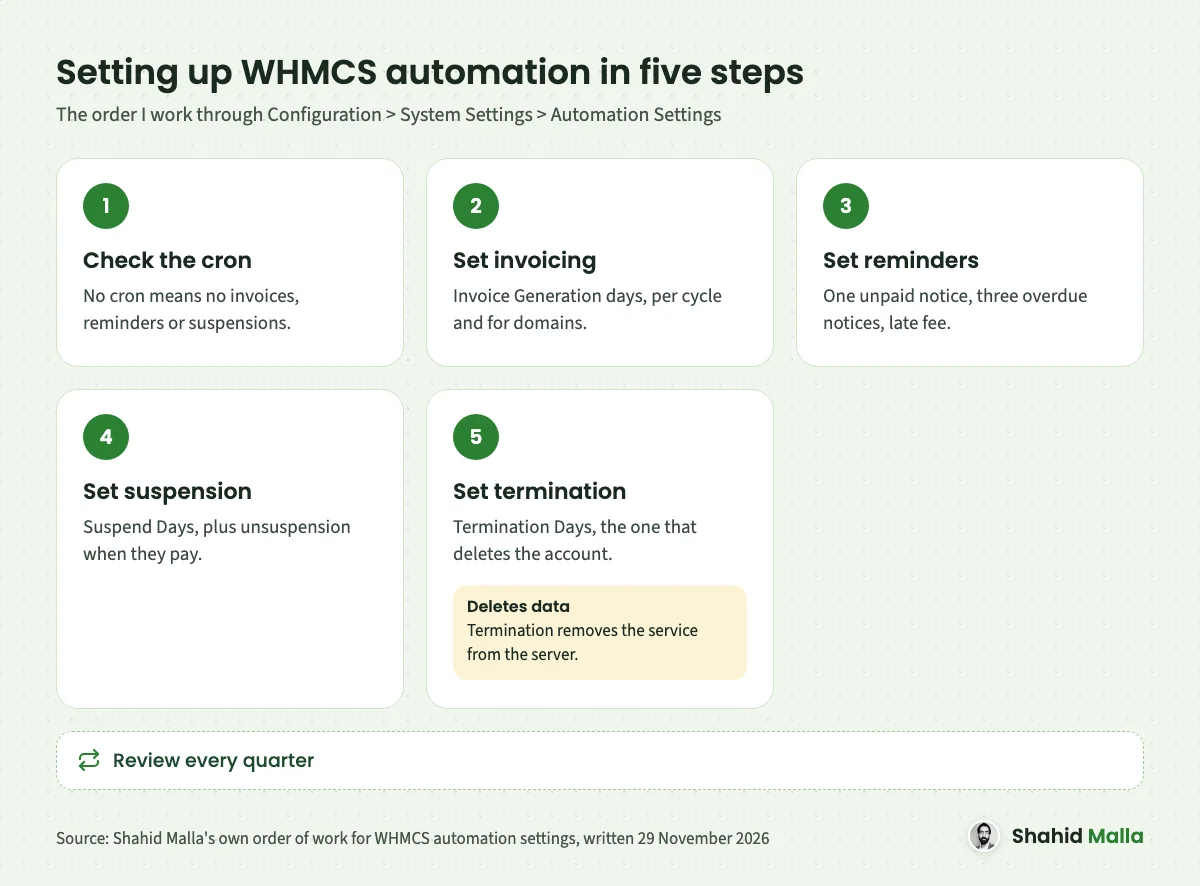
Is your cron running before you change any automation setting?
Check that first, because every setting on this page is an instruction to the cron and nothing else. The Automation Settings page states it plainly: on a self-hosted install you must configure the cron to run at least every five minutes for automation to function, and WHMCS Cloud handles the cron for you.
The Scheduling section holds one setting, Time of Day, the hour in which WHMCS performs all daily automation tasks. The documented default is 9:00am local server time. Invoicing, reminders, card charges, suspensions and terminations all happen in that hour, so if the cron is not called during it, none of them do. I move it to an early morning hour, because the daily run is the slow one. Check that the badge at Utilities > Automation Status is green first; my WHMCS cron jobs guide covers the command and the debugging flags.
How many days ahead should WHMCS generate invoices?
Invoice Generation in Billing Settings holds the number of days before the due date that WHMCS creates the invoice. The documented default is 14 days before the Next Due Date of the service, addon or domain.
Click Advanced Settings beside it and two more controls appear. Per Billing Cycle Settings gives each cycle its own number, so monthly services can invoice seven days ahead while annual services invoice 14 days ahead. Domain Settings sets a separate number of days for domain renewals, which the documentation calls particularly useful when you do not accept payments online and need longer to avoid a domain expiring. Leave it blank and everything invoices together.
The Billing Logic page explains the daily run: it reads the Next Due Date of every Pending and Active item, skips anything marked Do Not Renew, checks that no invoice item exists for that date, creates the invoice, fires InvoiceCreation, sends the Invoice Created email and moves the Next Invoice Date on a cycle. So WHMCS never creates two invoices for the same item and due date, and paying early never shortens the renewal date.
When should WHMCS send unpaid and overdue reminders?
Reminders are two separate things here, and mixing them up is the most common mistake I see. Payment Reminder Emails plus Invoice Unpaid Reminder control the notice sent before the due date. The three Overdue Reminder fields control the notices sent after it, and the documentation is explicit that the first setting does not apply to the overdue ones.
The Configure Payment Reminders tutorial names the fields in order: tick Payment Reminder Emails, put the days before the due date in Invoice Unpaid Reminder, then fill First, Second and Third Overdue Reminder with days after it. Entering 0 disables that email.
Three overdue notices is the maximum, so spend them well: one close to the due date for people who forgot, one just before suspension as a real warning, one after suspension explaining how to get back online. The wording lives in the templates, not here: my WHMCS email templates guide covers editing them.
Should you charge a late fee, and after how many days?
Add Late Fee Days is the number of days an invoice can be overdue before WHMCS charges the fee. The amount is not set here: the Automation Settings page says the fee follows your choices in the Invoices tab at Configuration > System Settings > General Settings, and the General Settings index confirms that tab is where late fees are applied.
For a small host I leave this at 0 until the reminder sequence has run for a few months. A fee three days after a due date mostly lands on customers who pay by bank transfer and were never going to churn. If you turn it on, set it after the second overdue reminder, and check how the fee is taxed where you are.
How many days overdue should WHMCS suspend a service?
Enter it in Suspend Days, after ticking Enable Suspension in Automatic Module Functions. The field is the number of days between a service becoming overdue and the system suspending it.
Billing Logic describes the check: the daily run reads the Next Due Date of all Active and Pending services, works out whether it falls inside the Suspension Days window, confirms suspension is enabled, fires PreModuleSuspend, suspends the service and stamps it with the reason Overdue on Payment. Note what it reads: the service's Next Due Date, not the invoice date.
Enable Unsuspension gets the service back without a ticket. When the overdue invoice is paid, WHMCS finds Suspended services whose reason is Overdue on Payment and reactivates them. Two limits are documented. A service you suspended by hand with a custom reason, such as Broken Terms of Service or Awaiting ID Verification, is never reactivated automatically. And with Continuous Invoice Generation, a customer who pays the newer invoice and leaves the older one unpaid stays suspended until payment pushes the Next Due Date out of the window.
What does WHMCS termination actually delete?
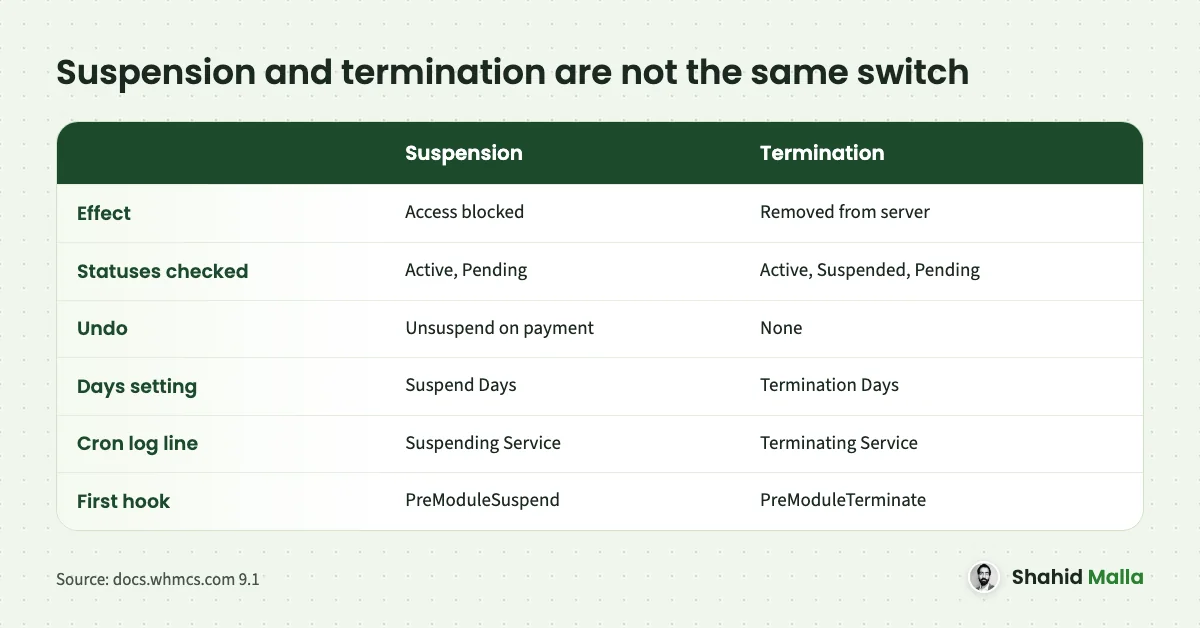
The service on the server. The documentation describes Enable Termination as terminating the client's service and removing it from the server, after the number of days in Termination Days. There is no undo: whatever the module removes, a cPanel account, a VPS, a game server, is gone unless you hold a backup outside WHMCS. The check is wider than the suspension one, because Billing Logic says it reads Active, Suspended and Pending services.
| Suspension | Termination | |
|---|---|---|
| What happens | Access blocked, account stays | Service removed from the server |
| Statuses checked | Active, Pending | Active, Suspended, Pending |
| Can it be undone | Yes, by Enable Unsuspension on payment | No, only from a backup |
| Days setting | Suspend Days | Termination Days |
| Activity Log line | Cron Job: Suspending Service | Cron Job: Terminating Service |
| First hook point | PreModuleSuspend | PreModuleTerminate |
Overdue termination is not the only way a service disappears. The Unexpected Service Terminations page lists three causes: a product with Auto Terminate/Fixed Term set in its Pricing tab, the overdue termination function, and an admin clicking Terminate. Each writes a different Activity Log line.
How should WHMCS handle cancellation requests and dead invoices?
Two settings cover the end of a customer's life here. Cancellation Requests, in Miscellaneous, automatically terminates accounts for clients who have requested termination. Enable Auto Cancellation, in Billing Settings, closes off old unpaid invoices. I leave Cancellation Requests off on a small host and work the queue by hand, because a cancellation request is the last chance to ask why someone is leaving.
Auto cancellation is safer. Tick it, enter a number in Days Overdue, and each daily run cancels unpaid invoices older than that. Three documented details matter: it never cancels an invoice with a partial payment or applied credit, however old; it adds a note recording the closure; and the invoices closed in the last daily run appear under Overdue Invoice Cancellations on the Automation Status page at Utilities > Automation Status.
Which payment capture settings decide when the card is charged?
Four, and only for merchant gateways that store a pay method. Process Days Before Due is how many days before the due date WHMCS first attempts the charge. Attempt Only Once stops after a single try. Retry Every Week For retries declined cards every seven days for the number of weeks you enter. The documented example: due date on the 14th, Process Days Before Due at 1, Retry Every Week For at 2, and WHMCS charges on the 13th, the 20th and the 27th. Set the retry value to 0 and it tries daily until the invoice is Paid or Canceled.
CC Expiry Notices Date is the day of the month on which WHMCS emails active clients whose cards expire by the end of that month. Removal is separate: on the 1st of each month WHMCS deletes cards whose expiry date is before that day. The documented example sets this to 1, so a card expiring on 31 March gets its reminder on 1 March and is removed on 1 April. A low value gives clients the most notice. Do Not Remove CC on Expiry stops that deletion.
What is a safe set of starting values for a small host?
These are my own starting points on a new install, not WHMCS defaults, except where the table says so.
| Setting | My starting value | Reason |
|---|---|---|
| Time of Day | An early morning hour (default 9:00am) | The daily run is slow |
| Invoice Generation | 14 days, the WHMCS default | Room for a transfer to clear |
| Domain Settings | 30 days | Registrar deadlines do not move |
| Invoice Unpaid Reminder | 3 days before due | Late enough to feel relevant |
| Overdue Reminders 1, 2, 3 | 1, 5 and 10 days after due | Nudge, warning, recovery |
| Add Late Fee Days | 0, disabled | Only once reminders work |
| Suspend Days | On, 5 days | After the second notice |
| Enable Unsuspension | On | Payment restores service |
| Termination Days | On, 30 days | Nothing deleted inside a cycle |
| Auto Cancellation | On, 60 days overdue | Keeps the unpaid list honest |
| Process Days Before Due | 1 day | Capture before it is late |
| Retry Every Week For | 2 weeks | Covers one card replacement |
| CC Expiry Notices Date | 1 | Most notice before removal |
| Cancellation Requests | Off | Read each one yourself |
| Delete Inactive Clients | Off | Deletion is permanent |
Before you save the page, run this check:
- Termination Days is at least two weeks higher than Suspend Days.
- At least one overdue reminder lands before the suspension date.
- Enable Unsuspension is ticked if Enable Suspension is ticked.
- Automation Status has shown a green cron for the last 24 hours.
- One test service has a Next Due Date you can watch through a full cycle.
- You hold a server backup that survives a termination.
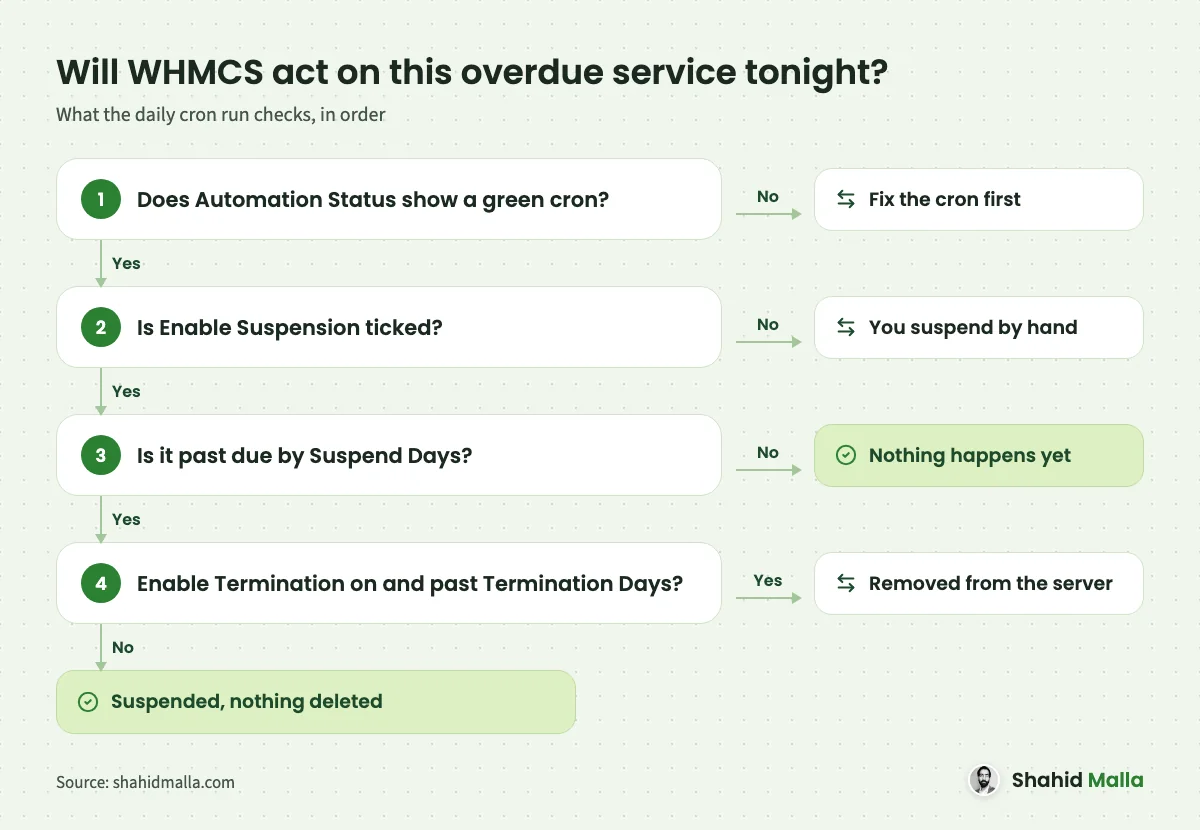
In words: a red cron badge means nothing runs. With a healthy cron, suspension happens only if Enable Suspension is ticked and the Next Due Date is past due by Suspend Days. Termination is a separate check with its own threshold: it needs Enable Termination ticked and the Next Due Date past due by Termination Days, not just past the suspension date.
What goes wrong with WHMCS automation settings?
These are what I check in an audit.
- Suspensions nobody ordered. The Unexpected Service Suspensions page says every module action writes to the Activity Log at Configuration > System Logs. A cron suspension logs
Automated Task: Starting Overdue Suspensions; an admin suspension logsModule Suspend Successfulwith the name in the User column. - Payment reversals that suspend a paying customer. Change Due Dates reverts the Next Due Date when a payment is reversed. The service is due again, and overdue if that date is past, which triggers an automated suspension until payment.
- Data retention pruning. Automatically Delete Inactive Clients deletes Inactive and Closed clients with no invoice or transaction history immediately, and others after the months you set. Decide the retention period first: my WHMCS GDPR compliance guide covers that side.
- Testing on production. Every setting here is global and lands on the next daily run, so change one group at a time. If something is already broken, my WHMCS troubleshooting guide starts there.
What else do people ask about WHMCS automation settings?
How many days should suspension and termination be set to?
WHMCS publishes no recommended figure, so this is my rule rather than a documented one: suspend after the second overdue reminder, and never terminate inside a billing cycle the customer has already been invoiced for. On monthly hosting that usually means suspension around day 5 and termination around day 30.
Why did WHMCS suspend a client who had paid?
Almost always because the service's Next Due Date is still in the past. Suspension reads that date, not the invoice. With Continuous Invoice Generation enabled, paying a newer invoice while an older one stays unpaid leaves the Next Due Date inside the suspension window.
Do automation settings work without a cron job?
No. The Automation Settings page states that the system cron performs these tasks and that a self-hosted install must run it at least every five minutes. WHMCS Cloud configures the cron for you. With a broken cron, every setting on the page is inert.
Can I stop WHMCS suspending one particular client?
The settings on this page are global, so there is no per-client switch there. What the automation reads per service is the Next Due Date, which is why moving that date is the usual way to give one customer more time. An admin can also suspend or unsuspend a single service from Module Commands.
How do I turn off WHMCS overdue reminder emails?
Set the reminder you do not want to 0. The tutorial says entering 0 in First, Second or Third Overdue Reminder disables that email, and the same applies to Invoice Unpaid Reminder. Clearing the Payment Reminder Emails tick box stops only the pre-due reminder.
If you would rather set these values against your own churn and payment data with help, I do that as WHMCS support and maintenance or as hourly WHMCS developer work, with a free scoping call of about 30 minutes and a written quote within one business day.
Last reviewed 29 November 2026. Disclosure: I am a freelance WHMCS developer and I sell WHMCS configuration, auditing and maintenance work, so I am not neutral. I am CTO at ElySpace, a freelance developer for Marmaids LLC, and founder of WHMCSPilot and MagizAI. Setting names, defaults, log lines and hook points come from the WHMCS 9.1 documentation, read 29 November 2026; the starting values are my own.